How to Fix Wi-Fi That Keeps Disconnecting (2026)
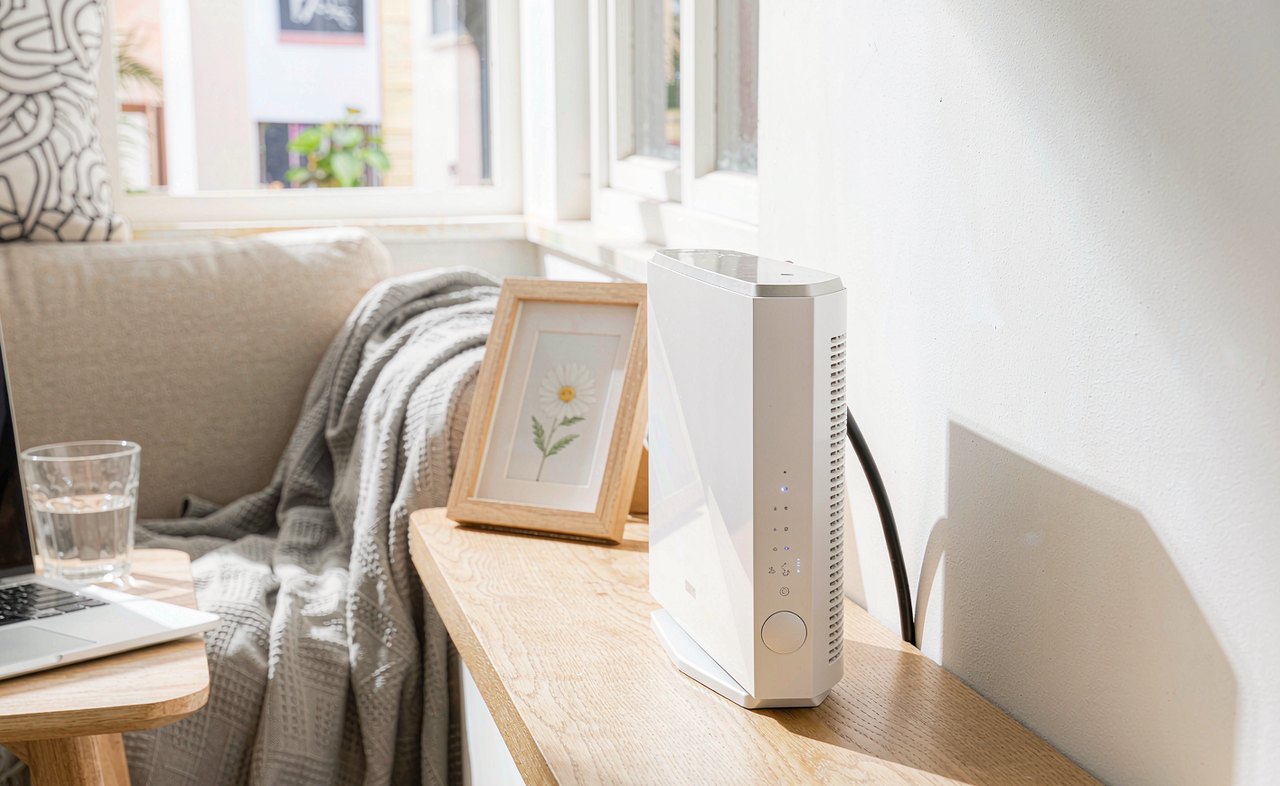
The pattern is maddening: video calls freeze, downloads stall, the little globe icon flashes "No internet" for ten seconds — and then everything works again, until it does not. Wi-Fi that keeps dropping is almost always fixable at home, for free. The trick is working through the causes in order, starting with the one question that halves the troubleshooting time.
Step 1: One Device or All Devices?
Before touching any settings, grab your phone and keep it next to the laptop on the same network for ten minutes. If the phone stays connected while the laptop drops, your problem is the laptop — go to Steps 3 to 6. If both drop together, the problem is the router or the line from your provider — go to Steps 2, 6, 7 and 8. Guessing at fixes in the wrong place is why this problem drags on for weeks.
Step 2: Restart the Router — Properly
A real router restart is not pressing the reset button.
- Unplug the router's power cord from the wall.
- Wait a full 30 seconds (this lets capacitors drain and old connections clear).
- Plug it back in and give it two or three minutes to fully boot — the lights should settle into their normal pattern.
Routers that run for months accumulate memory leaks and overheating slowdowns; this clears both. If your drop-offs come in daily patterns (for example every evening), a restart may even reveal the true culprit — a neighbor's router switching channels at dinnertime, or an internet plan running out at a monthly data cap.
Do not press the reset button on the router itself. Reset is not restart — it wipes your network name, password and provider settings back to factory defaults, and you will have to reconfigure everything.
Step 3: Stop Windows from Power-Saving Your Wi-Fi
This is the single most common cause of laptop-only disconnects, and almost nobody knows it exists: Windows is allowed to switch your wireless card into a low-power state to save battery, and some drivers are too slow to wake back up — so the connection drops.
- Right-click Start → Device Manager.
- Expand Network adapters and find the entry containing "Wi-Fi", "Wireless" or "802.11".
- Double-click it → Power Management tab.
- Untick "Allow the computer to turn off this device to save power" → OK.
Also check Settings → System → Power & battery and make sure the power mode is not "Best power efficiency" while plugged in. Battery-life settings should never cost you your calls.
Step 4: Update or Reinstall the Wireless Driver
Wi-Fi drops that follow a Windows update — or appear on a laptop that never did this before — point straight at the driver.
- In Device Manager, right-click the wireless adapter → Update driver → Search automatically for drivers. Restart and test.
- If that changes nothing, go to your laptop manufacturer's support website (Dell, HP, Lenovo, ASUS...), enter your model, and download the latest wireless driver from there. Maker sites carry newer, model-specific drivers than Windows Update does. This is especially true for laptops using Intel, Realtek or MediaTek cards.
- As a clean-slate option: right-click the adapter → Uninstall device, tick nothing about deleting the driver software, restart the laptop — Windows reinstalls the driver fresh on boot.
Step 5: Reset the Network Stack
If the connection drops but other devices are fine and driver updates changed nothing, Windows' own network layer may be damaged. These commands reset it without touching your files:
- Open Terminal (Admin).
- Run each of these, pressing Enter after each:
netsh winsock reset
netsh int ip reset
ipconfig /release
ipconfig /renew
ipconfig /flushdns - Restart the laptop.
Also try forgetting the network and reconnecting: Settings → Network & internet → Wi-Fi → Manage known networks → Forget, then reconnect with the password. Corrupted saved profiles cause connect-then-drop loops that mimic every other problem on this list.
Step 6: Reduce Interference and Distance
Physical reality defeats software fixes. Wi-Fi hates walls, water and other radios.
- Router placement: central, elevated, out in the open. Inside a cabinet, behind a TV, or next to a microwave or aquarium = constant dropouts. A microwave running can obliterate the 2.4 GHz band entirely.
- Band choice: if your router broadcasts two networks (2.4 GHz and 5 GHz), connect the laptop to 5 GHz when you are in the same room — it is faster and far less crowded. Use 2.4 GHz only for distance and wall-piercing.
- Crowded channels: in apartment buildings, dozens of neighboring networks fight over the same channels. Restarting the router often forces a re-scan for a quieter channel; routers with an app can show you which channels are busiest and let you pin a quiet one manually.
Step 7: Update the Router Firmware
Log into your router's admin page (usually http://192.168.1.1 or http://192.168.0.1 in a browser — the address and password are on a sticker on the router). Look for a Firmware Update or System section. Router makers ship real bug fixes for exactly these drop-out issues, and firmware updates take five minutes. While you are in there, check that the router is not set to reboot on a schedule you forgot about.
Step 8: When It Is Your Internet Provider
If every device drops together, restarts and firmware did not help, and drops cluster at busy hours, the fault may be on the provider's line: a failing modem, a damaged cable to your building, or congestion in your neighborhood. Before calling, note down the times of the last week's drops — providers take patterned complaints seriously and can run line diagnostics from their side. If you have your own router plugged into a provider modem, also test the laptop plugged straight into the modem with a cable for an evening; a stable wired connection while Wi-Fi still drops proves the issue is inside your home network, not the line.
FAQ
Wi-Fi says connected but there is no internet — same problem?
Often yes. "Connected, no internet" with periodic dropouts is usually the same driver or power-management issue. The commands in Step 5 and the driver update in Step 4 fix most of these.
Do Wi-Fi extenders help?
They extend coverage, but a cheap extender halving speeds and adding its own instability is common. Fix the disconnect cause first; only add hardware once the network is stable, and prefer a mesh system over a single plug-in extender if coverage is the real goal.
Should I change DNS settings?
Changing DNS (for example to 1.1.1.1 or 8.8.8.8) can make pages load faster and more reliably, but it does not fix a link that physically drops. Do it as a bonus after the real fix, not instead of it.
Quick Checklist
- Isolated laptop vs router with a second device
- Router power-cycled for 30 seconds (reset button untouched)
- "Allow the computer to turn off this device" unticked
- Wireless driver updated from the maker's site
- Network stack reset and profile re-added
- Router out in the open, 5 GHz band preferred nearby
- Router firmware updated
Work through these in order and the disconnects almost always stop by Step 5. The power-management checkbox and the maker's driver are the two fixes people kick themselves for missing — check them first if you only have ten minutes.