Laptop Overheating? How to Cool It Down (2026)
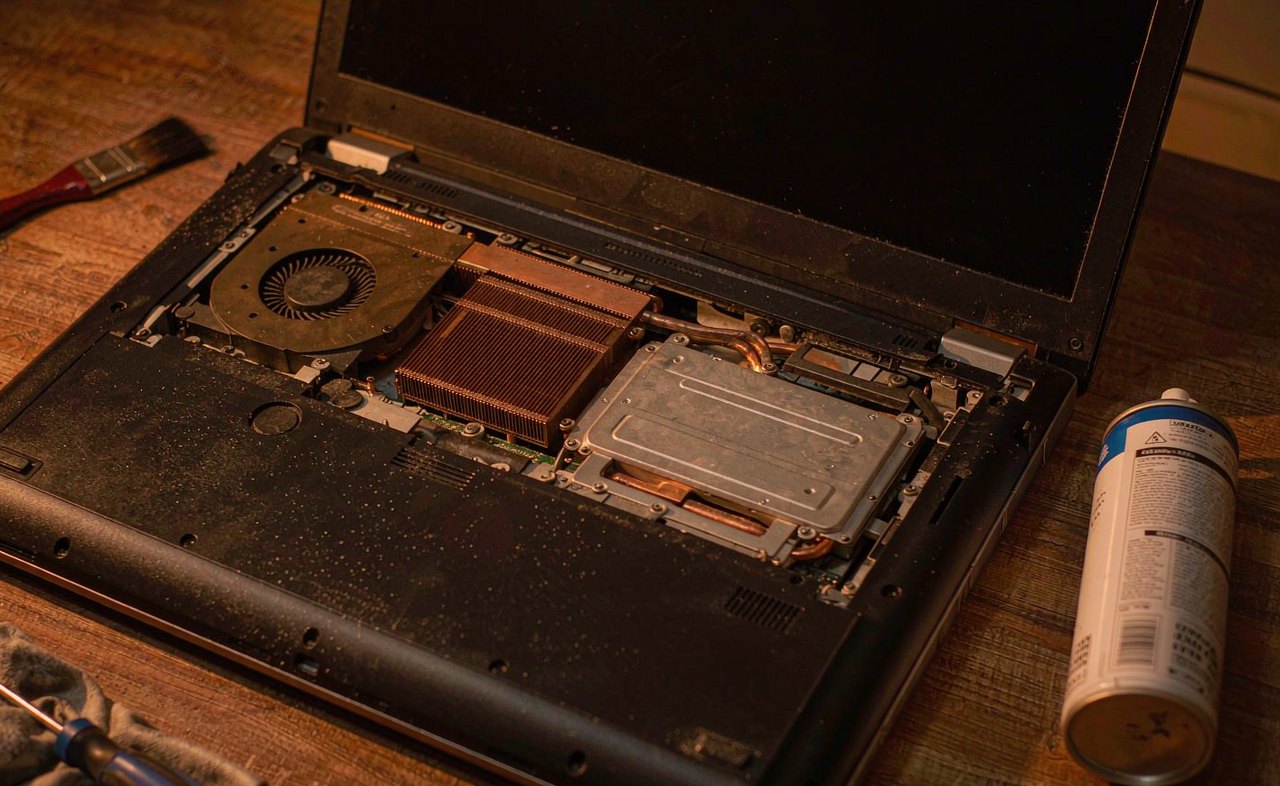
The fan spins up like a jet engine, the keyboard feels too warm for comfort, and the whole machine goes sluggish the moment you open more than two programs. That is laptop overheating in action — and it is usually fixable without a repair shop. Heat is also cumulative damage: a laptop that runs hot for months ages its battery and shortens its life. Here is how to find out how hot it really is, fix the common causes in order, and keep it cool afterward.
First, Measure Instead of Guessing
"Feels hot" is not a diagnosis. Download the free HWiNFO tool (from hwinfo.com), open Sensors, and look at CPU temperature under load — while the fan is loud and the laptop feels slow. Rough reference points: up to 60–70°C is normal for everyday use, 80–90°C is common during heavy work or gaming, and sustained readings in the high 90s or spontaneous shutdowns mean a real cooling problem. HWiNFO also shows fan speed in RPM — a fan reading zero while temperatures climb points at a fan failure, which is a repair, not a settings tweak. On Apple silicon MacBooks temperatures run lower by design; the same airflow and cleaning advice still applies.
Step 1: Fix the Airflow Under the Laptop
Laptops breathe through vents — usually slots on the bottom edge and around the hinge — and blocking them is the single most common cause of heat complaints. Using a laptop on a bed, couch, duvet, or your lap smothers those vents within minutes. Set the machine on a hard, flat surface: a desk, a book, even a baking tray works. A basic laptop stand lifts the machine a centimeter or two and lets air move underneath; they cost little and typically drop temperatures several degrees on their own. Whatever you do, stop using the laptop on soft fabric — that one habit causes a huge share of overheating cases.
Step 2: Clean the Vents and Fans
After a year or two, dust packs the heatsink fins like felt, and the fan can spin at full speed while almost no air moves. Cleaning is straightforward:
- Without opening the laptop: shut it down, then blow short bursts of compressed air into the vent slots on the bottom and sides. Keep the can upright so no liquid propellant escapes. You will be surprised what comes out.
- With the bottom panel opened (if you are comfortable with a screwdriver): unscrew the panel, hold the fan blades still with a finger or toothpick so they do not overspin, and blow the dust out of the fan and heatsink fins toward the vents.
Do this outdoors or over newspaper. If the laptop is three or more years old and has never been opened, the dust layer is usually thick enough that a proper open-up cleaning makes a dramatic difference — many repair shops do it cheaply if you would rather not.
Step 3: Find Out What's Actually Working the CPU
Sometimes the hardware is fine and something is simply burning CPU all day. Press Ctrl + Shift + Esc to open Task Manager, sort processes by CPU, and watch. Usual suspects:
- Stuck background processes — an antivirus scan, a sync client gone haywire, or a browser tab with a runaway script. End the task and the fan quiets within seconds.
- Browser tab hoarding — dozens of open tabs plus video playback can push a laptop to its limits. Close what you are not using; extensions like tab-suspenders help on long sessions.
- Startup bloat — in Task Manager's Startup apps tab, disable anything you do not need launching at boot. Less background work means less heat.
- Crypto-mining malware — rare but real: a process you do not recognize consuming 50–100% CPU around the clock deserves a malware scan with Windows Security.
Step 4: Tame the Power Settings
Windows power plans decide how aggressively the CPU boosts. Open Settings → System → Power & battery and set the power mode to Balanced (or Best power efficiency when you are on battery) instead of Best performance. Balanced mode keeps peak performance when you actually need it but stops the chip from idling hot. On gaming or creator laptops, the manufacturer's control software (Armoury Crate, Legion Toolkit, Omen Gaming Hub and friends) has fan and performance profiles — the "balanced" or "standard" profile runs dramatically cooler than "performance/turbo" mode with barely noticeable speed loss for daily work. If the fan is constantly roaring at idle, also make sure Windows and the laptop's firmware (BIOS/UEFI) updates are current — fan curve fixes ship in those updates.
Step 5: When It's Time for New Thermal Paste
Thermal paste is the thin compound between the CPU/GPU chips and their heatsinks. It dries out over roughly three to five years, and once it does, no cleaning or stand will fix the heat — temperatures stay in the danger zone even at light load on a freshly cleaned machine. The fix is a repaste: opening the laptop, cleaning off the old paste with isopropyl alcohol, and applying a new layer. It is a moderately delicate job — cable connectors and fragile fan wires are involved — so if the laptop is under warranty or you are not confident, a repair shop can do it inexpensively, and many will combine it with the deep cleaning from step 2. A good repaste on a three-year-old machine routinely drops load temperatures by 10°C or more.
Everyday Habits That Keep a Laptop Cool
- Hard surfaces only — the bed is for sleeping, not for laptops.
- Annual cleaning — one round of compressed air through the vents each year.
- Charge smart — heavy work while charging adds heat; it is fine to work on battery sometimes, and a "charge limit" of 80% (if your laptop offers one) reduces battery heat and aging.
- Shut the lid on demanding tasks — closing the lid during a long render or download traps heat; let heavy jobs finish with the lid open.
- Replace aging batteries — a swollen battery pushes the case apart and damages the cooling; a bulging bottom panel is an immediate stop-and-service sign.
Overheating is almost never one big failure — it is a blanket over the vents, a felt pad of dust in the heatsink, and a CPU set to run flat-out forever. Remove each layer and the fan quiets down on its own.
Measure the temperatures, give the machine air, blow out the dust, and cut the background load. That routine fixes the overwhelming majority of hot, loud, slow laptops — and the ones it does not fix have just told you exactly what to tell the repair shop.