Printer Offline? How to Fix It on Windows (2026)
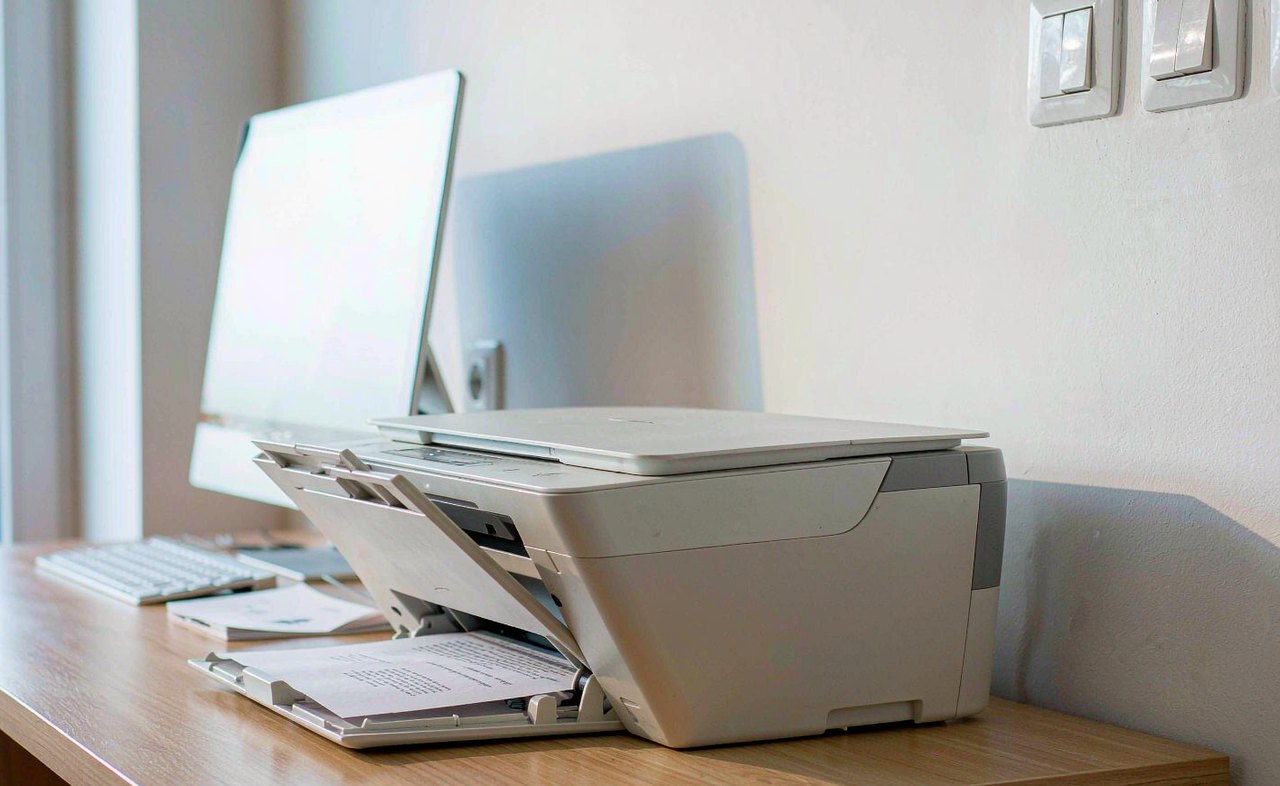
The printer is switched on, there is paper in the tray, and Windows still says Offline. It is maddening precisely because the printer is obviously not off. The good news: the Offline status is almost never a broken printer. It is a stuck print queue, a checkbox that flipped by accident, or a printer whose network address quietly changed. Work through these steps in order — most people are printing again by Step 3 or 4.
Step 1: Confirm the Printer Can Print at All
Separate printer problems from Windows problems first:
- Most printers can print a status or test page from their own menu, with no computer involved. Look for it under the printer's settings or tools. If that page fails too, the problem is ink, paper, a jam or firmware — not Windows.
- Check the printer's display or LEDs for errors: open lid, paper jam, empty cartridge.
- On a USB printer, swap in a different cable and port. Cables fail quietly and often.
- On a Wi-Fi printer, look at its screen or network light to confirm it is actually connected to your network — not to a neighbour's, and not to nothing.
Step 2: Restart Everything, in the Right Order
- Turn the printer off, unplug it from the wall for about 30 seconds, plug it back in and turn it on. This clears its memory the way a reboot clears a computer's.
- Restart the PC.
- On a network printer, restart the router as well.
That sequence resolves a surprising share of Offline errors by itself, because it refreshes the connection on every device at once.
Step 3: Untick the Hidden Use Printer Offline Switch
Windows has a setting with exactly this name, and it toggles itself on more often than it should — commonly after a power blip or a queue hiccup.
- Go to Settings → Bluetooth & devices → Printers & scanners, select your printer and choose Open print queue.
- In the queue window, open the Printer menu at the top-left.
- If Use Printer Offline is ticked, untick it. Untick Pause Printing too, if it is set.
Queued jobs usually start moving the moment you untick it. If the status still reads Offline, continue.
Step 4: Clear a Stuck Print Queue
One corrupted job can jam the whole queue and flip the printer to Offline.
- In the print queue window, choose Printer → Cancel All Documents, or right-click each job and cancel it.
- If a job refuses to die: press Windows key + R, type services.msc, press Enter, find Print Spooler in the list → Restart. Then cancel the job again.
Step 5: Fix the Default Printer Problem
Windows likes to switch your default printer to whichever you used last — which might be a virtual printer like Microsoft Print to PDF, or one that no longer exists. Jobs then pile up on a printer that cannot respond, and Windows reports it as Offline.
- Settings → Bluetooth & devices → Printers & scanners.
- Untick Let Windows manage my default printer.
- Select your real printer → Set as default.
Step 6: Network Printers — the IP Address Trap
This is the classic worked-yesterday-offline-today cause on Wi-Fi printers: your router leases IP addresses for a limited time, and when the lease renews the printer can receive a different address — while Windows keeps sending jobs to the old one.
- Print a network configuration report from the printer's own menu, usually under Network or Wireless settings. It shows the printer's current IP address, something like 192.168.1.42.
- On the PC: Printers & scanners → your printer → Printer properties → Ports tab.
- Select the TCP/IP port in use, click Configure Port, and compare the IP there with the report. If it differs, update it to the current one.
- To stop it recurring, give the printer a fixed address: either set a DHCP reservation for it in your router's settings, or assign a static IP in the printer's network menu.
Also confirm the PC and the printer are on the same network. Many routers broadcast a guest network and split 2.4 GHz and 5 GHz bands under different names; a PC on one and a printer on the other will never meet, even though both look connected.
If you only remember one thing: the Offline flag lives in two places — the checkbox in the queue's Printer menu, and the IP address in the Ports tab. Nearly every stubborn case is one of the two.
Step 7: Reinstall the Printer Cleanly
If the settings all check out and it still shows Offline, remove and re-add it:
- Printers & scanners → select the printer → Remove.
- Restart the PC.
- Choose Add device and let Windows find the printer. Windows 11's built-in drivers cover most models; if yours is missing or has extra features such as scanning or duplex printing, install the software from the maker's site.
For USB printers, this step also rebuilds the port binding, which can go stale after a major Windows update — a known cause of sudden Offline status on printers that were fine the day before.
What Not to Bother With
- Third-party printer repair or driver booster apps. They solve little and add clutter. Windows' own tools plus the manufacturer's site cover everything.
- Reinstalling Windows. Offline status is a queue, setting or network issue in virtually every case.
- Blaming ink levels. Low ink produces faded pages, not an Offline status. A hard cartridge error on the printer's display can block jobs, though — so do check the display.
Quick Checklist
- Printer self-test page prints without the PC
- Printer, PC and router restarted in order
- Use Printer Offline and Pause Printing unticked
- Queue cleared, spooler restarted if needed
- Default printer set manually
- Port IP matches the printer's network report
- Printer removed and re-added if all else fails
Work down the list and printing usually returns by Step 3 or 4. The two fixes people kick themselves for missing: the hidden Use Printer Offline checkbox and the changed IP address on network printers — check those first if you are in a hurry.