Bluetooth Not Working on Windows? Easy Fixes (2026)
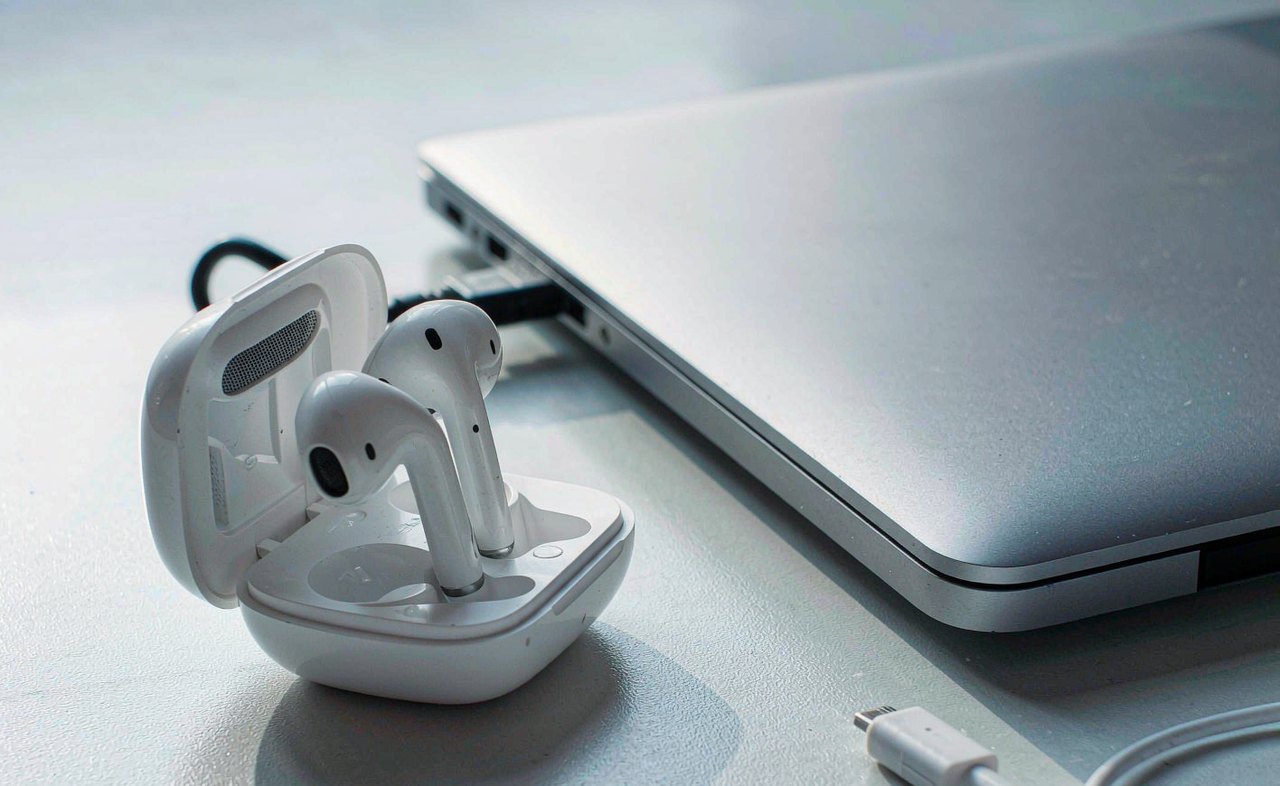
Bluetooth on Windows fails in two distinct ways: the PC cannot see the device at all, or the device pairs and then misbehaves. The fixes are different, and most guides blur them together. This one does not. Work through the steps in order — the early ones take seconds and resolve the majority of cases, and the later ones cover the stubborn driver and interference problems that remain.
Step 1: The Sixty-Second Sweep
Start with the boring checks, because they win surprisingly often:
- Toggle Bluetooth off and back on. Click the quick settings area of the taskbar (network, sound, battery) and flip the Bluetooth tile. Radios get stuck; this resets them.
- Make sure Airplane mode is off.
- Restart both the PC and the device. It is a cliché for a reason.
- Check the device's battery. Many headphones refuse to pair on a low charge.
- If the device also connects to your phone, disconnect it there first — multipoint devices quietly latch onto the phone and ignore the PC.
- Hold the pairing button until the light blinks. Powered on is not the same as discoverable; almost every device needs a long press — often three to seven seconds — to enter pairing mode.
Step 2: Confirm the PC's Bluetooth Is Alive
Open Settings → Bluetooth & devices. If there is no Bluetooth toggle at all — and "Add device" is grayed out for Bluetooth — Windows cannot see an adapter. That points to a driver problem or hardware switched off at a lower level.
Some laptops have a function key or a BIOS-level wireless switch that kills Bluetooth independently of Windows; check the F-key row for a radio icon. On desktops, Bluetooth may simply not exist — many motherboards omit it — and a small USB dongle solves that permanently for a few dollars.
Step 3: Remove the Device and Pair Fresh
Pairings rot. After a device firmware update or a Windows upgrade, an old pairing record can stop working while still looking perfectly healthy in the list.
- In Settings → Bluetooth & devices, find the device, click its three-dot menu, and choose Remove device.
- Put the device back into pairing mode and pair it again from scratch.
If the device pairs but produces no sound or no input, repeat this step once more — a half-paired device is the single most common cause of "connected but not working."
Step 4: Run the Troubleshooter
Go to Settings → System → Troubleshoot → Other troubleshooters → Bluetooth → Run. It repairs the discovery service and re-registers the adapter's settings automatically. Thirty seconds, no downside — if it says it fixed something, test before moving on.
Step 5: Fix the Driver
Open Device Manager and expand Bluetooth. What you want to see is a clean list with no yellow warning triangles.
- If the adapter shows a warning, right-click → Update driver → Search automatically.
- If the trouble started after an update, use Roll back driver.
- If Bluetooth has vanished from the list entirely: click View → Show hidden devices. A grayed-out adapter confirms Windows lost it — then try Action → Scan for hardware changes, or restart.
The option that works more often than any other: shut the PC down completely, unplug the power cable (or hold the power button for 15 seconds on a laptop), wait half a minute, and boot again. This cold boot resets the radio hardware in a way that a normal restart frequently does not.
Vendor drivers from your laptop maker's support page beat generic ones for Bluetooth, because their packages include the radio's firmware stack — grab them for your exact model.
Step 6: Stop Windows Switching It Off
Here is a classic pattern: Bluetooth works, then dies after the PC idles for a while, then wakes up again after a reboot. Windows is powering the adapter down to save energy.
- In Device Manager, open the adapter's Properties — the top-level entry with "Bluetooth" in its name, not the devices listed under it.
- On the Power Management tab, untick Allow the computer to turn off this device to save power.
While you are at it, check Settings → System → Power & battery: an aggressive battery-saver mode can throttle radios too. Test once with battery saver off before concluding anything.
Step 7: Interference and Crowding
Bluetooth shares the crowded 2.4 GHz band, and two culprits are incredibly common.
USB 3.0 ports and hubs radiate noise that lands squarely on Bluetooth frequencies. If your dongle — or laptop — sits right next to a USB 3.0 drive or dock, connections stutter or drop for no visible reason. Move the adapter to the opposite side of the PC, or put it on a short USB extension cable away from the ports. This one trick fixes more office Bluetooth problems than any driver update.
Then reduce the crowd: walls and especially metal desks weaken the signal fast, a body in the path does the same, and a room full of competing 2.4 GHz devices makes pairing flaky. Keep the device within a couple of meters while pairing. Finally, install pending Windows updates — Bluetooth stack fixes ride along with ordinary cumulative updates.
What Not to Bother With
Third-party "Bluetooth fixer" and driver-updater tools top the ignore list — Windows already contains everything needed. Endlessly forgetting and re-pairing is not a strategy either; do it once, properly, in pairing mode. And if the adapter itself is dead — invisible even after a cold boot with drivers reinstalled — no software rescues it. A USB dongle is the honest fix.
Quick Checklist
- Bluetooth toggled, airplane mode off, both devices restarted
- Device actually in pairing mode, not just powered on
- Phone connection released; battery charged
- Old pairing removed, fresh pairing completed
- Troubleshooter run
- Driver updated or rolled back; cold boot performed
- Power management unticked on the adapter
- Adapter away from USB 3.0 ports and interference
Most Bluetooth problems come down to three things: a stale pairing, a power-hungry Windows setting, or interference. Fix those in this order and the wireless headphones, mouse, or keyboard that drove you to this article should behave again — and stay paired.